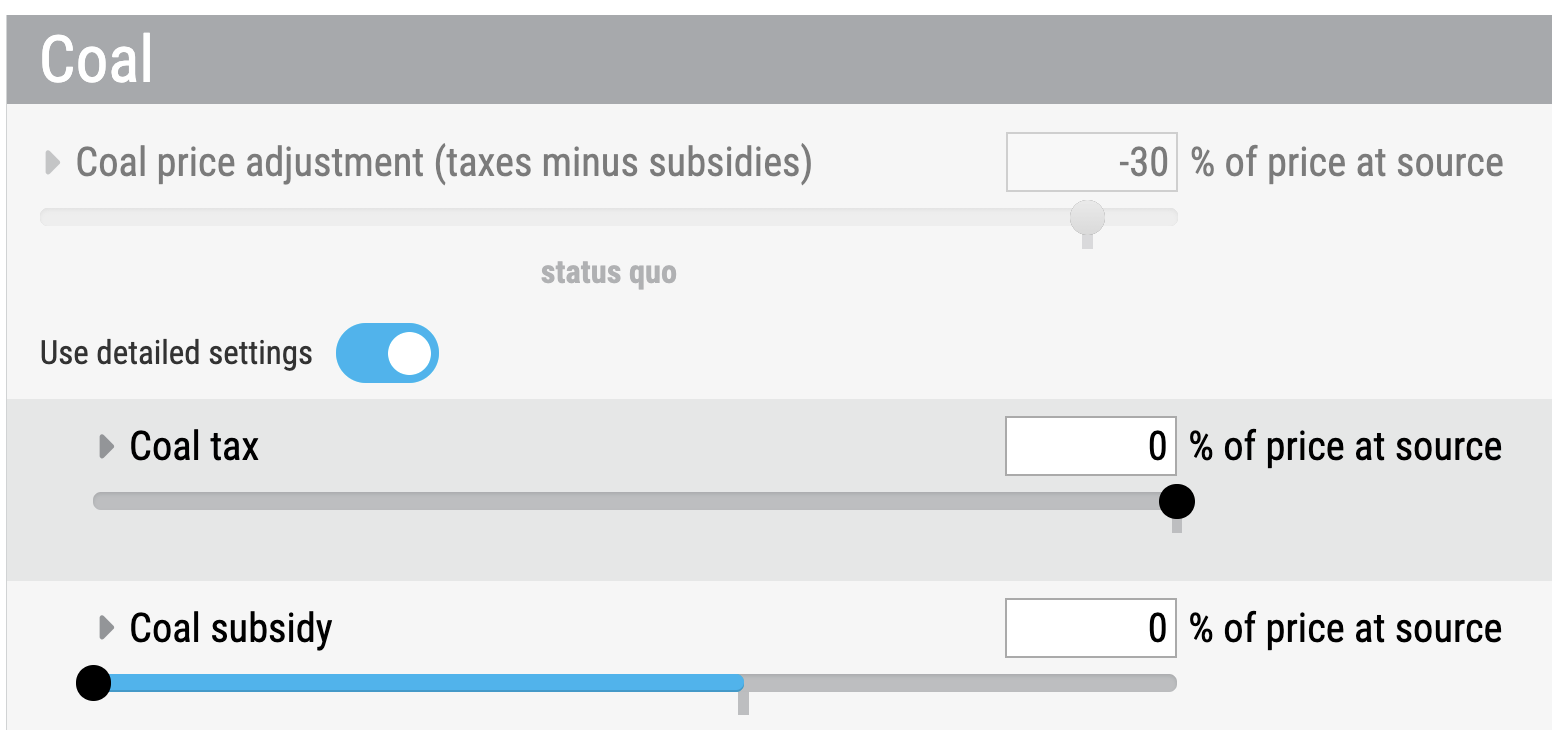
Current fossil fuel subsidies are included in the En-ROADS Baseline Scenario. To remove them, open the advanced view of the Coal, Oil, and Natural Gas sliders, enable the “Use detailed settings” switch, and move the subsidy slider (e.g., “Coal subsidy”) to 0%. Learn more in the explainer on taxes and subsidies in En-ROADS.
Advanced details
For Coal and Natural Gas, you could alternatively move the main “Coal price adjustment” or “Natural gas price adjustment” slider to 0%, since the default status quo setting for these energy sources is subsidized but not taxed.

For the main “Oil price adjustment” slider, however, this approach will not work, since oil is both subsidized and taxed in the status quo setting (resulting in a net tax, unlike the net subsidy for the other energy sources). Move the main “Oil price adjustment” slider to 35% to remove the subsidies, or just use the “Oil subsidy” slider. See this in En-ROADS.

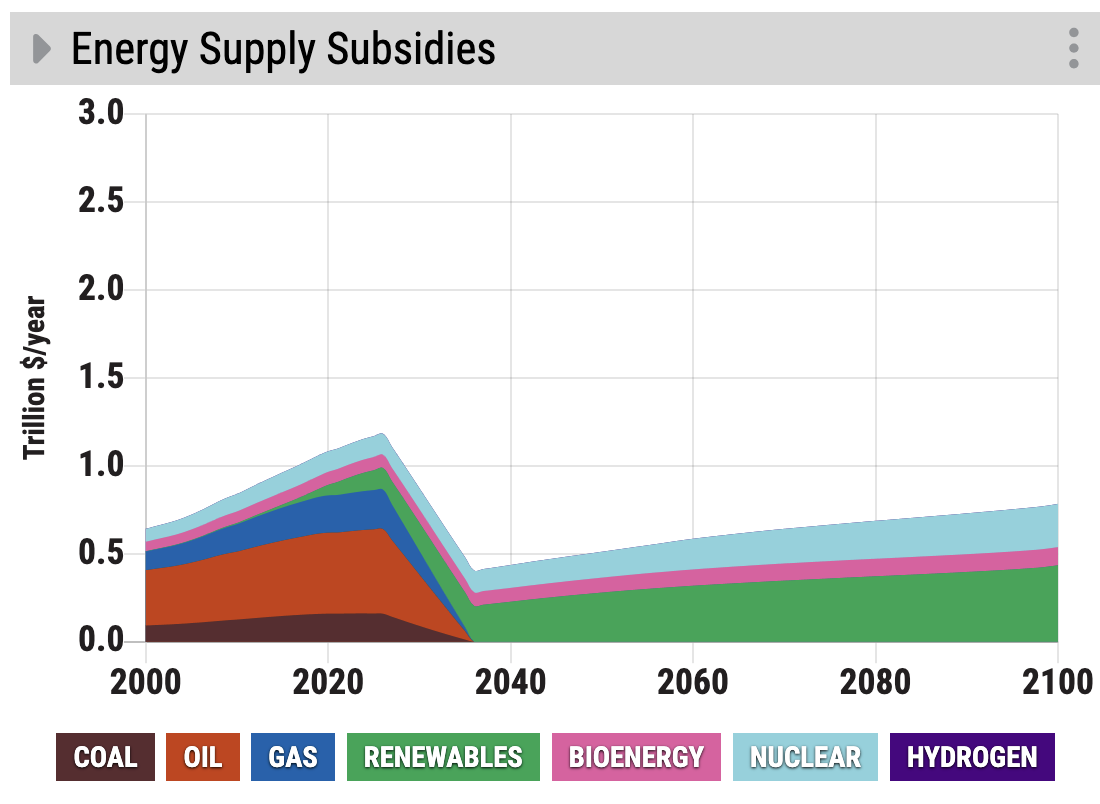
You can use the “Energy Supply Subsidies” graph to verify that you have removed the fossil fuel subsidies, as the brown (Coal), red (Oil) and blue (Natural Gas) subsidy wedges disappear after the 10-year phaseout period. (To change the length of phaseout, use the “Years to achieve energy supply taxes or subsidies” slider under Simulation > Assumptions > Energy supply policy timing).